
For
Owners/admins and teammates with code removal access.
Before you start
In Operations, select the door and find the code.
Steps
Read the message beside the code
Needs attention means the last change did not finish. Setting or Removing means we are still waiting for the lock. The selected door checks its latest code list automatically, including changes made in the lock’s app. Choose Refresh codes below the list to check now; you do not need to submit a change again.
Check the lock maker’s app
Open the same door and check the number and access dates. If the code is missing, switched off, or says Active but fails at the door, open Recovery steps.
Get help if it still fails
Contact STRide Locks support with the door name and when you tried the code. Choose Copy support reference if shown. This reference helps us find the problem without including your access code.
Delete only if you want to remove access
If you replaced a code in the lock’s app, the earlier STRide Locks entry may still be a separate code. Delete requests removal of the exact name and number shown; it also replaces the old request to keep that number on this door. Retry removal tries that removal again. Review the door, name and number before confirming. These actions do not restore a code you still want to use.
Example screen
Example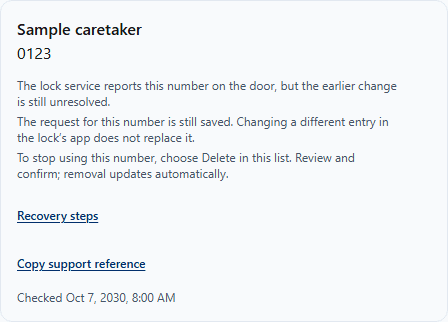
Phone recovery
Example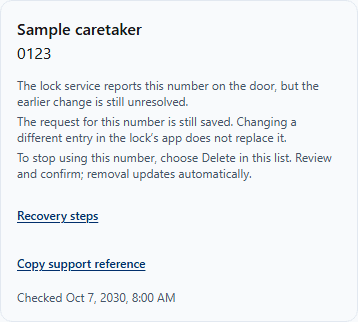
What to expect
Needs attention can remain even when the lock service reports the number on the door, because an earlier change is unresolved. The code disappears after its removal is confirmed.
If something does not look right
If the app says the number is already used, check the existing code instead of adding another copy. Closing a confirmation stops you sending it; it cannot undo a change already sent. Contact support if removal fails.
Contact support