
For
Owners, admins and team members with lock and code access.
Before you start
Your account needs at least one saved lock. The locks and actions shown depend on your role and grants.
Steps
Open Operations
Choose Operations in the main workspace navigation. The summary shows lock status and automatically checks saved arrivals for access issues when your account has Reports access.
Review arrival access
Scan the arrival-access card for missing plans, date differences, and property or entrance-mapping issues. An unverified provider installation is information, not proof a code failed. In Simulation Mode, STRide Locks will not write access codes to locks, and this check does not verify codes installed by Uplisting or another provider. Open Reports for the full saved-stay review.
Choose a lock
Select a row in Locks to open its access codes and controls. On a phone, use Show all locks to switch, then choose a lock.
Read the status before acting
Review the latest lock, battery and code status for that lock. Open Code status guide when you need a definition.
Use only the action you need
Lock and Unlock controls can change the physical lock state. Use them only when you intend that action and your role allows it.
Example screen
Synthetic data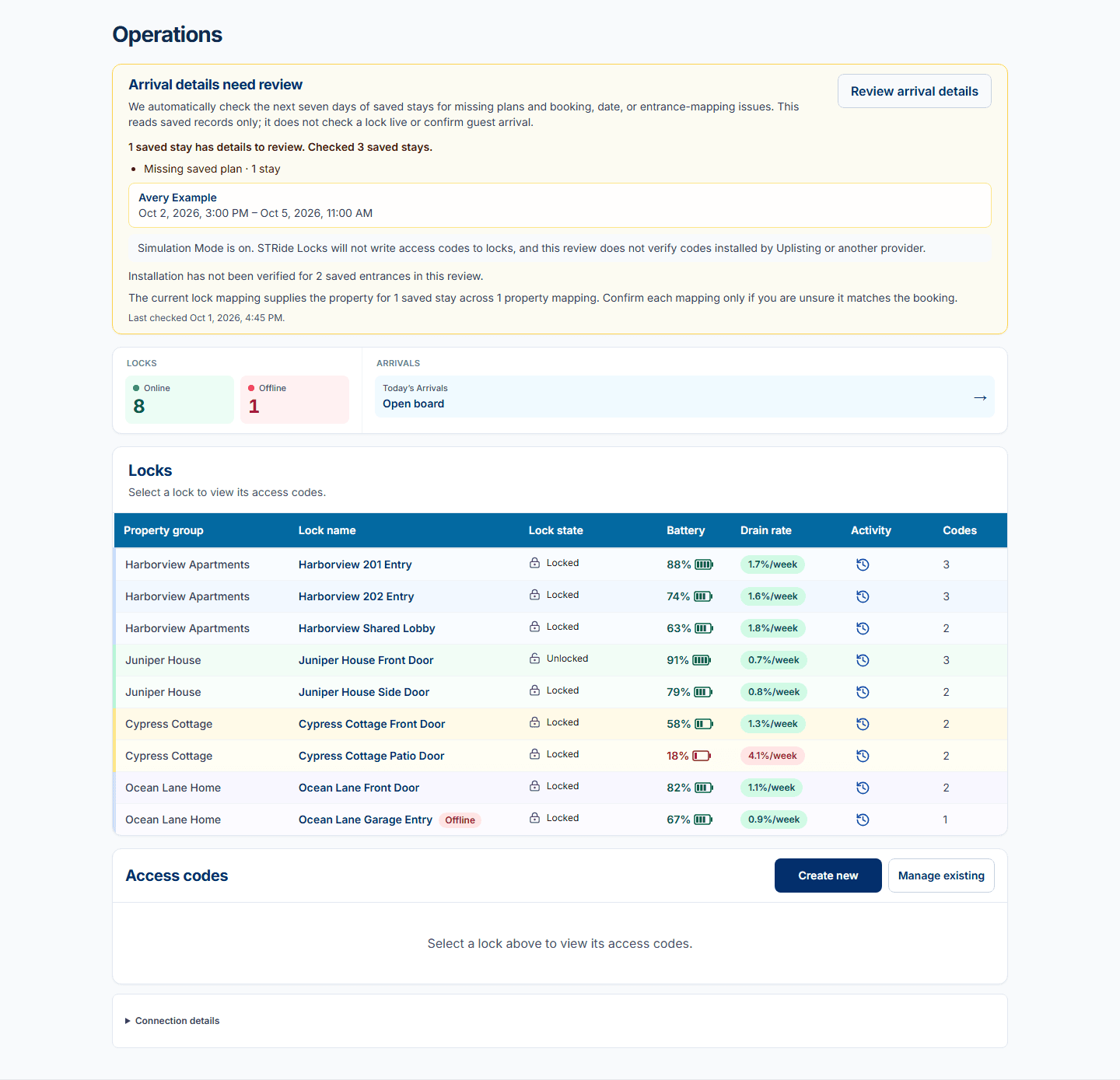
Phone example screen
Synthetic data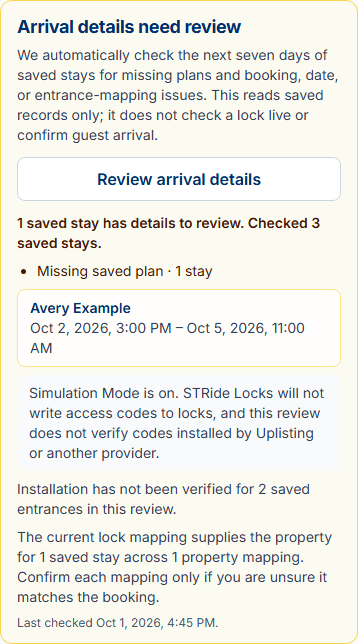
What to expect
Operations keeps the selected lock and its saved code details together, and surfaces saved arrival-access concerns without requiring a manual check.
If something does not look right
If status is unknown or a page cannot refresh, open Portfolio to check the saved lock and connection, then reload the page. Do not repeat an action whose result is still being confirmed.