
For
Owners/admins and team members with code management access.
Before you start
You need access to view and manage codes. Start from a lock’s Access codes section in Operations.
Steps
Open Manage existing
In Operations, select a lock and choose Manage existing in its Access codes section.
Enter a PIN or name fragment
In Access code or name, enter the exact 4–8 digit PIN or any part of the saved label. For example, typing Jake finds saved labels that contain “Jake”, without matching case.
Check every matching lock
Review the label, lock and property group for each result. Name searches can return multiple codes across different locks.
Choose the intended action
Select only the rows you want to change. Choose Edit selected codes or Delete selected codes, then select Review selected codes.
Confirm after reviewing
Check the names and locks in the review. Choose Confirm changes or Confirm deletion only when the list is correct.
Example screen
Synthetic data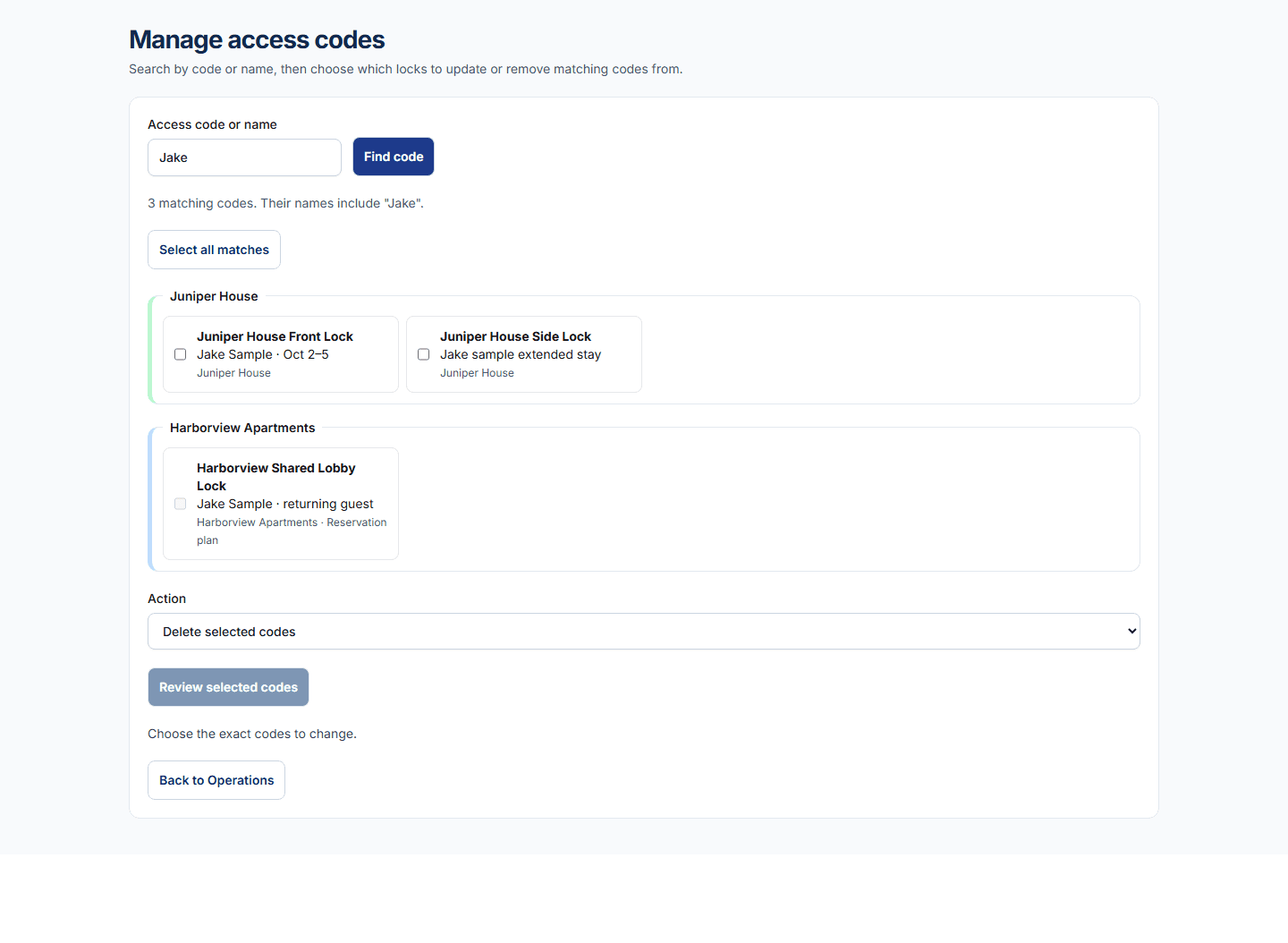
What to expect
The search shows saved code labels that contain the text you entered. Search is case-insensitive; exact PIN lookup still works as before.
If something does not look right
If you see too many results, add more of the person’s label and review each lock. If a change is uncertain, check the saved result before trying again.