
For
Owners/admins and team members granted code creation access.
Before you start
You need permission to create codes and access to every lock you select. Some locks accept only certain PIN lengths.
Steps
Start from Operations
Select a lock and choose Create new in Access codes, or choose Add an access code from the welcome tour.
Select one or more locks
Use Find locks to filter the list. Select the exact locks that should share this access code.
Enter the label and PIN
Fill in Name and Access code. The optional Lock name and Property group buttons add a label token that expands for each selected lock.
Choose the duration
Choose Permanent, or Temporary and enter Starts and Ends in your device’s local time zone.
Review, then add
Choose Review selected locks. Check the label, duration and every lock. Choose Add code only when you intend to create it on those locks.
Example screen
Synthetic data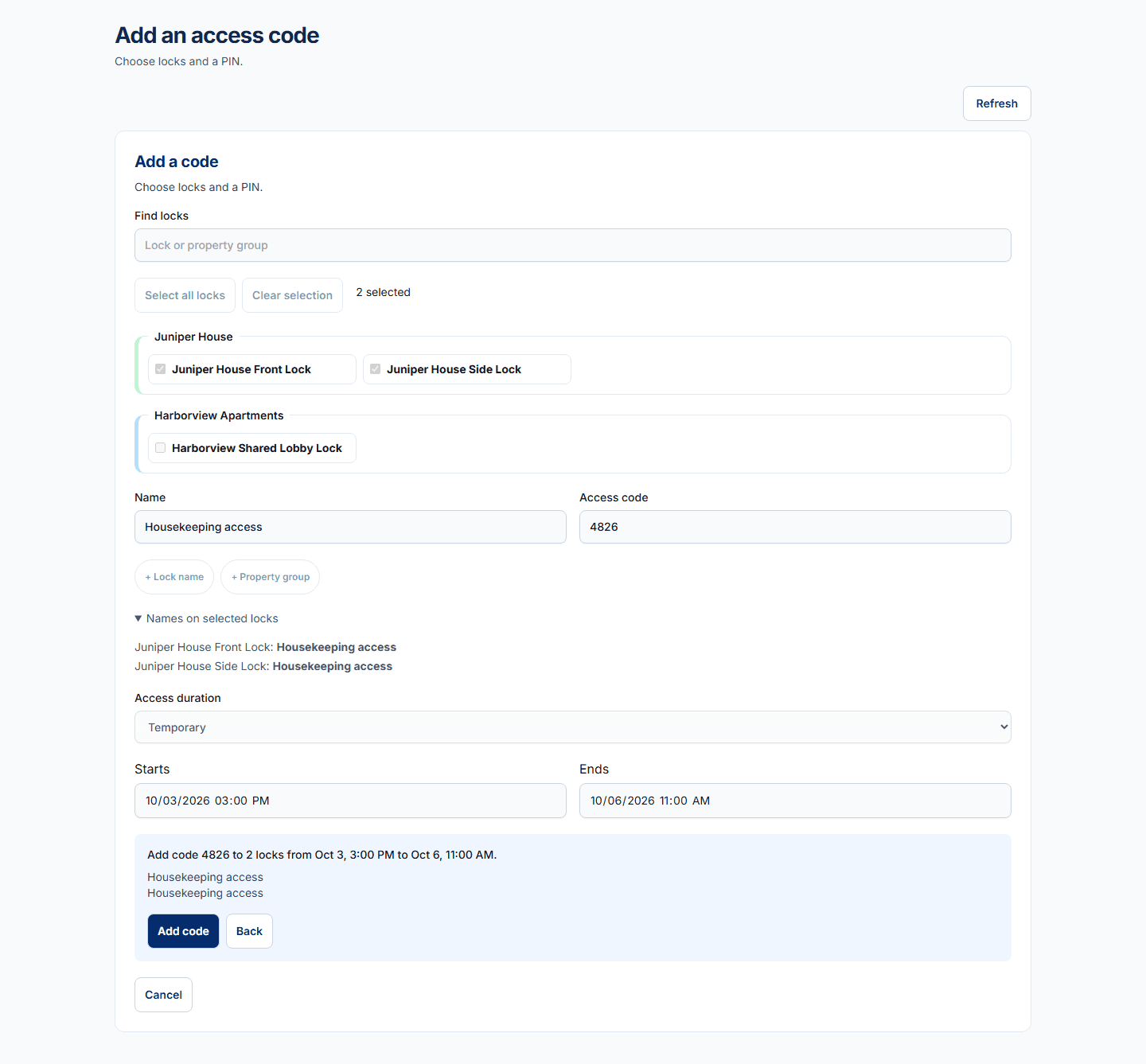
What to expect
STRide Locks submits the reviewed code request and shows its per-lock result in Operations. A saved plan or unconfirmed result is not proof that the lock accepted the code.
If something does not look right
If the result is uncertain, return to Operations and review the code status before submitting another request. Do not repeat a code action while its result is unknown.