
For
Workspace owners and admins.
Before you start
Check the number, access dates and lock connection first. Allow several minutes per code, sometimes five minutes or more. A code will not work while it is being removed and added back.
Steps
Open Repair codes
In Portfolio, open Health check for the door. Open Code recovery, then Repair codes. Use this for supported codes after a hardware change, or when a code reported as installed fails at the keypad. For an August/Yale owner’s code or an already-used-number warning, contact support first.
Select only the codes that need repair
Codes may start selected. If only one fails, clear the others. Check every selected name and number. The original numbers and access dates stay the same. Codes that cannot be repaired show a reason.
Start the repair
Choose Repair codes with the selected count. Each code is removed, then added back. It cannot be used during that time. Other code changes wait while the repair runs.
Keep the page open
Progress updates automatically. Switching tabs pauses new steps until you return. Use Pause and Continue repair if needed. If you close the page, reopen Repair codes and choose Continue repair. Work already sent can still finish; completed steps are not repeated.
Review the repair results
When the repair finishes, review the remote result for each selected code and its access times. If an entry problem is still reported, contact support. Review remaining codes if you need to repair more.
Find code recovery in Health check
Example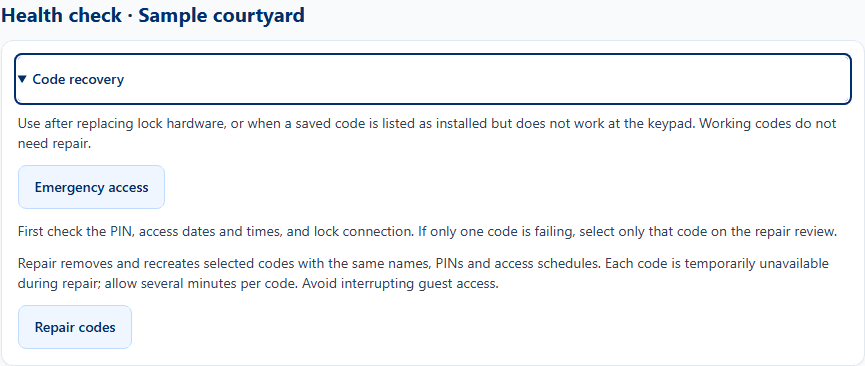
Code recovery on a phone
Example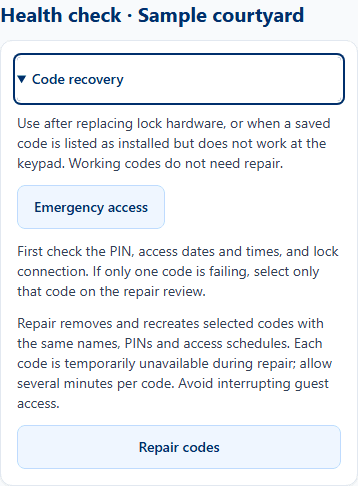
What to expect
The selected codes keep their original numbers and access dates. STRide Locks checks their reported status remotely.
If something does not look right
If repair pauses, read the message before continuing. Confirm replacement checks a code that may already have been added; it does not add another copy. Stop remaining is available only at safe stopping points. If the result is unclear or the code changed elsewhere, leave it paused and contact STRide Locks support.
Contact support