
For
Workspace owners and admins.
Before you start
Open Operations. Access readiness appears above the locks immediately; other attention sections appear when they have specific issues.
Steps
Review only the issues shown
The section stays hidden while loading, when no specific issues are known, or when checks cannot be read. Background checks continue. If there are issues in several categories, use the available category buttons. Choose Show all if there are more items.
Open the right details
Code requests show the affected name and recorded time when available. Pending removals check the exact original code automatically, even after it disappears from the list. Check removal gets the latest result without repeating the request; a confirmed removal clears the alert. View door codes opens the door’s current list, which can include other active codes. Review codes opens the whole door list. It does not hide other codes. View lock opens the door. Review stay opens its saved arrival details. Review and confirm any code action in its usual screen.
Review guest access
Access readiness stays collapsed when no problem is detected. Expand its heading for Check all stays, Help, check times and Code not working?. Report is always at the top right. During a check, the reservation count and progress remain visible, and Check all stays is hidden. Real code or reported entry problems automatically expand the card in red. It closes when problems clear, unless you opened it yourself; your open preference is remembered until you close it. All codes reported ready requires current results and no reported entry problems. Warnings group affected doors under each stay. Recheck this stay refreshes that reservation’s doors; Review fix checks whether STRide Locks can set its code. Door codes opens the selected lock’s code list. Use Code not working? to report an entry problem and review recovery options. Reported problems remain open until you resolve them.
Let your team know
Choose I’m handling this if you are looking into an issue. Someone is handling this stays visible with the issue. Release handling removes that mark. The mark does not fix, stop or delete anything.
Get an update
Checks update automatically. The small refresh icon (Check for updates) requests an immediate update, including pending removals. Some updates are delayed means additional issues may not have appeared yet; open the relevant door or arrival details.
Example screen
Example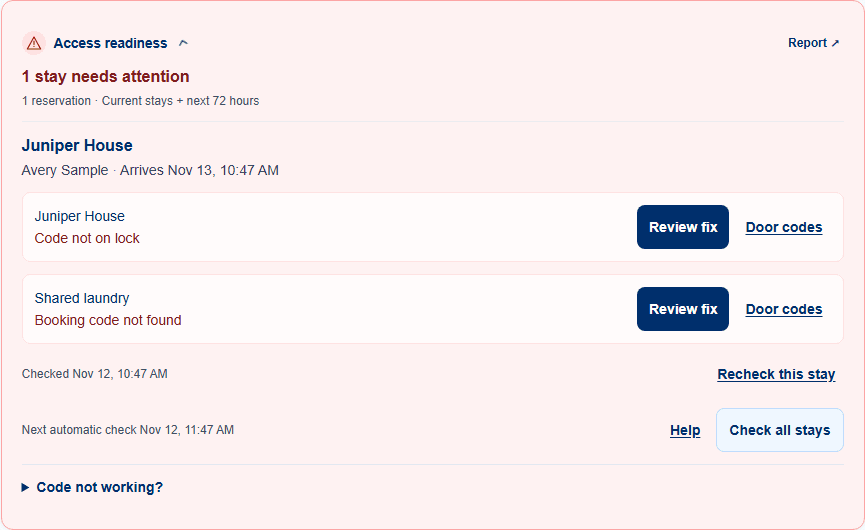
Additional example screen
Example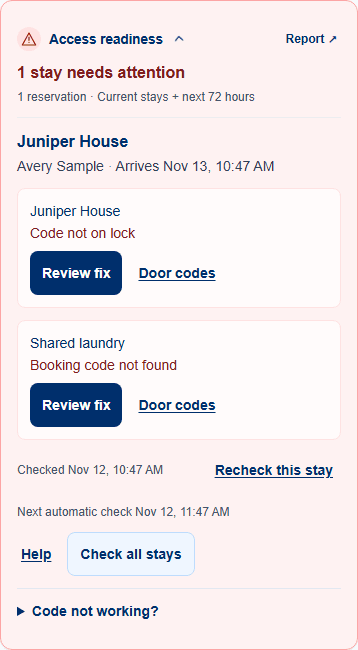
What to expect
The view combines saved checks and recent recorded requests. It does not check every keypad, and older requests or changes in another app may be missing.
If something does not look right
Checks continue in the background and when you return to Operations. A hidden section is not a guarantee that every lock is healthy. Review a selected door for its details. Check for updates never repeats a lock or code change.
Contact support