
For
Workspace owners and admins.
Before you start
Open a current or upcoming guest access alert in Operations, or expand its door details in Reports > Access readiness.
Steps
Open the warning
In Access readiness, choose Review fix or Try setting this code.
Set the code
Check the guest, door and dates. STRide Locks will take over an eligible existing entry or add the booking’s existing code, preserving its number and access times. Select Allow this real lock change, then Set code. Later booking changes need review while automatic updates are off.
Review the result
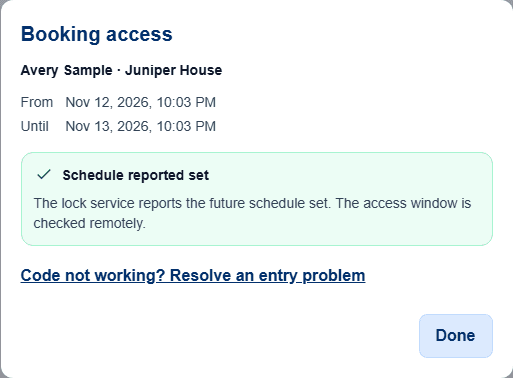
STRide Locks checks the code remotely and updates its status. If a guest reports that it still fails, choose Code not working?.
Additional example screen
Example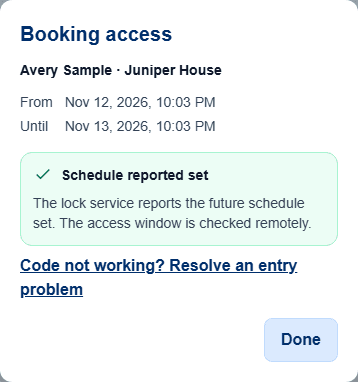
What to expect
Progress updates automatically. Check now checks the existing request; it does not send it again.
If something does not look right
Changed the PIN yourself? Choose Confirm code on the mismatch warning. If recovery is unavailable, open Door codes to review that door, or use Code not working? for backup and temporary-access options. The lock’s app remains a fallback when remote recovery is unavailable.
Contact support