
For
Workspace owners and admins.
Before you start
Open Operations and select the door.
Steps
Open the clock
Tap the small clock beside the access-code number. The window shows recent keypad entries that the lock service identifies as belonging to this exact code. It is available even when a code needs attention.
Check what the lock can report
Some locks do not identify the code for every keypad entry. The history explains when it is incomplete or cannot be checked. An empty list does not prove the code was unused. View door activity opens the door’s activity view, including entries without a known code.
Return or check again
Choose Close beside View door activity at the bottom. Reopen the clock for a fresh read. Review the code list for its latest status and available actions.
Example screen
Example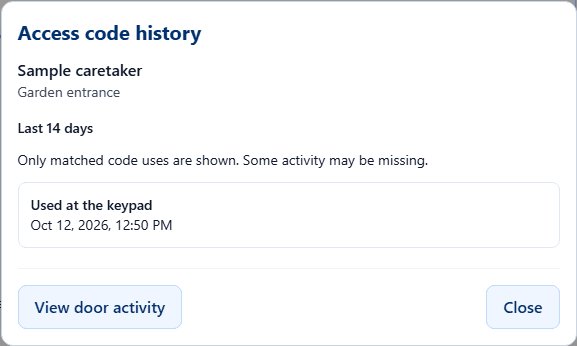
Additional example screen
Example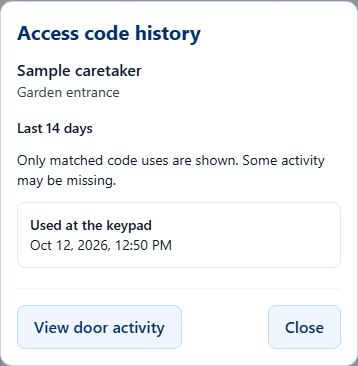
What to expect
History shows only keypad reports matched to the exact code over the last 14 days. It may be incomplete. Opening it never changes a code.
If something does not look right
If history is unavailable, close and reopen the window. View door activity opens the broader reports; an empty code history does not prove the code was unused.
Contact support