
For
Owners and admins.
Before you start
Guest messaging delivery is currently inactive. Saved preferences or a sample preview do not send a message.
Steps
Open Notification History
Open Reports, then Notification History. Owners and admins can view workspace, guest and team messages. Team members see only their own permitted updates. Use the type, outcome and recipient filters to find a message. Notifications disabled by preference are hidden unless you include them.
Read the outcome carefully
Sent · delivery unconfirmed means the sending service accepted the message. Delivered appears only after a verified delivery receipt. Delivery unconfirmed means we cannot confirm the result; STRide Locks does not automatically resend. Expand What to do beside a problem outcome for help.
Open booking delivery history for detail
Open Message history from an arrival or guest access review. Or go to Settings, Guest Messaging and enter the booking ID under Booking delivery history. You can expand recorded attempts for more detail; times are shown in your local time.
Check earlier revisions
Open Previous message revision to review an older version. A newer message does not prove an earlier one was delivered.
Example screen
Example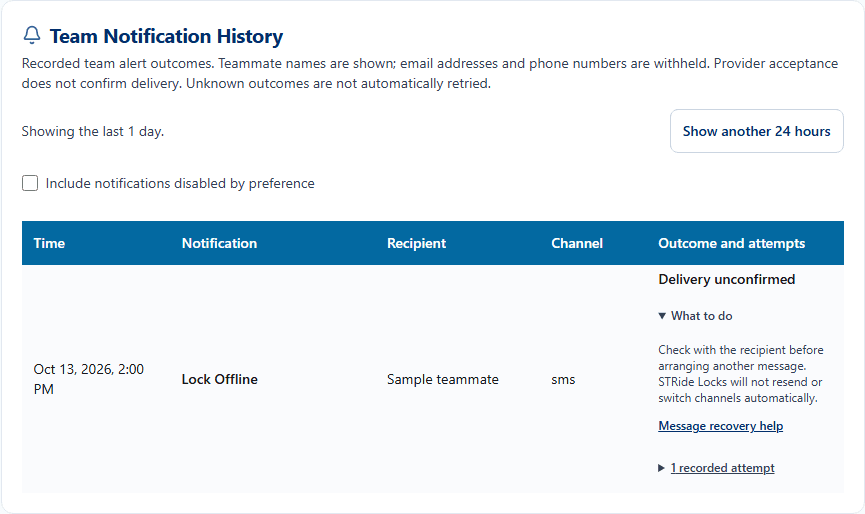
Additional example screen
Example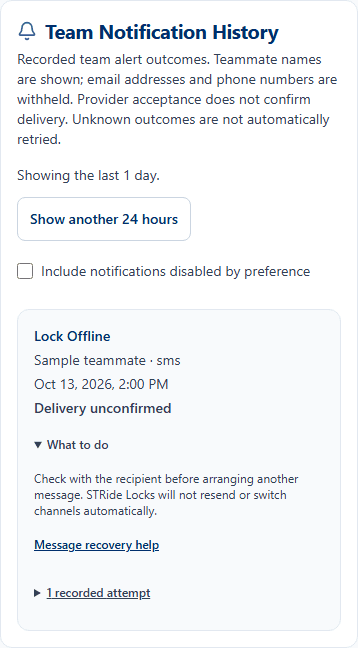
What to expect
You can see which messages were delivered and which still need review.
If something does not look right
If the date range has no rows, show more time in Notification History and verify the exact booking ID in Guest Messaging. An empty history means no matching record was found; it is not a delivery receipt.
Contact support