
For
Owners and admins.
Before you start
Open Settings, then Guest Messaging. Only an owner or admin can turn on sending.
Steps
Choose who sends the codes
Choose your booking system to keep sending messages there. Choose STRide Locks to send door codes by email, text or both.
Set the timing
For STRide Locks messages, enter the days and hours before check-in. For last-minute bookings, choose As soon as ready or a Short delay of up to 120 minutes.
Make the message your own
Edit email and text in Message templates, visible even when your booking system sends messages. Use the detail chips for host name, property names, address and booking times. More booking details includes dates, times and booking ID. Keep Door access codes in each message.
Preview and save
Use Upcoming guest messages to check real bookings and their send times, then Save preferences. Preview sample is also available. Saving does not turn on sending.
Turn on when ready
Choose Review and turn on. Check the channels and timing, then confirm Turn on guest sending. If setup needs attention, open Delivery setup for the remaining checks.
More details
Which bookings are included?
Turning on includes existing stays with a message time still ahead and new bookings. Overdue messages are skipped. Resuming follows the same rule; it does not send a backlog.
Pause or change your choices
Choose Pause sending to stop future sends. A message already being sent may still arrive. Saving new preferences also holds sending; review and turn on again when you are ready.
If your booking system sends the messages
Use the guest-code field supplied by STRide Locks in your booking-system template. Check that the code is available before your message goes out. We have not yet confirmed a typical processing time.
How a last-minute delay works
The delay starts when the reservation is made. With a ten-minute delay, a code ready after two minutes waits until minute ten. A code ready after twelve minutes sends when ready. Booking updates do not restart the wait. Advance bookings do not get an extra delay.
Booking details and check-in instructions
Defaults include the property name, available address, and check-in and check-out dates and times in the property’s time zone. Missing address lines are left out. Messages identify STRide Locks; you send check-in instructions separately and handle guest questions. Email comes from no-reply@stridelocks.com, and replies are not monitored.
Avoid duplicate messages
These settings do not change your booking-system messages. Review them separately so guests receive the right information once. Choosing both Email and SMS intentionally sends one of each.
Code timing and delivery setup
Message timing does not change when codes go to locks. A message can contain an assigned code before its access starts; check its access times. A day means 24 hours, including daylight-saving changes. Open Delivery setup and choose Check delivery setup to see what remains before sending can be turned on.
Reset a template
Reset template drafts loads the default wording without changing your saved templates. Preview it, then Save preferences if you want to keep it. Each message needs the Door access codes detail; email subjects cannot include codes.
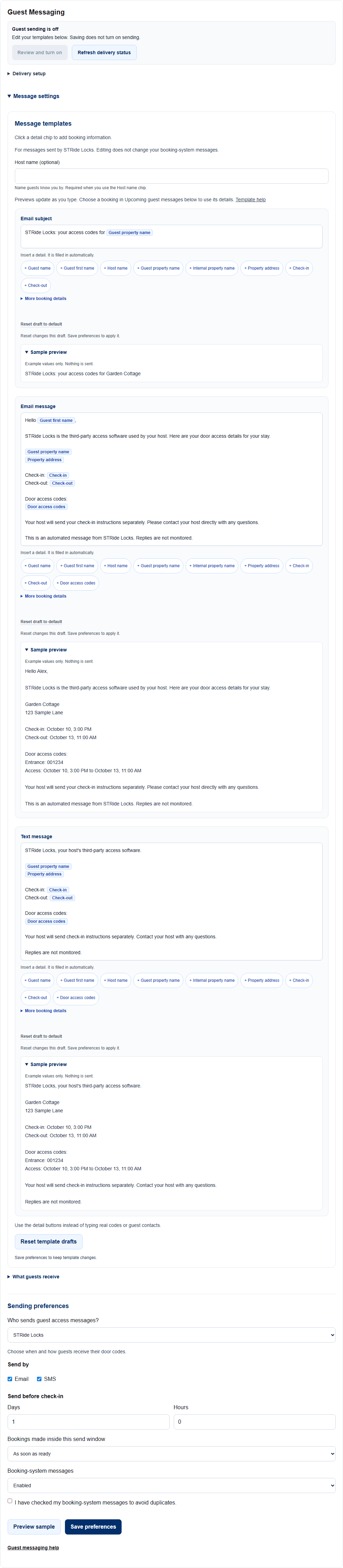
Guest message settings
Example
What to expect
Your saved choices are ready. The status at the top shows whether sending is on, off or paused.
If something does not look right
Cannot save? Reload the page and try again. If saving is still unavailable, contact support. If a message has an unclear delivery result, check with the guest before arranging another.
Contact support