
For
Owners and admins.
Before you start
Open Settings, Guest Messaging, then Message templates.
Steps
Set your host name
Enter the name guests know you by if you want to use the Host name chip.
Write your message
Edit the email subject, email message and text separately. Click a detail button to insert it at your cursor. Keep Door access codes in each message.
Choose the right details
Guest property name is your public listing title. Internal property name is your booking-system nickname. Open More booking details for separate dates and times, booking ID and number of nights.
Preview and save
Under Upcoming guest messages, choose your dates and Show upcoming messages. Select a booking to see its details in the editor previews. Your wording updates as you type. Save preferences to keep changes; saving does not turn on sending.
More details
Where the details come from
Booking names, references and stay times come from your reservation. Property names and addresses come from the matching listing. Host name comes from the name you enter here. Guest first name uses the first word of the reservation’s guest name.
Missing details
An unavailable address or internal name on its own line is left out. A missing detail inside a sentence holds the message for review so guests do not receive an incomplete sentence.
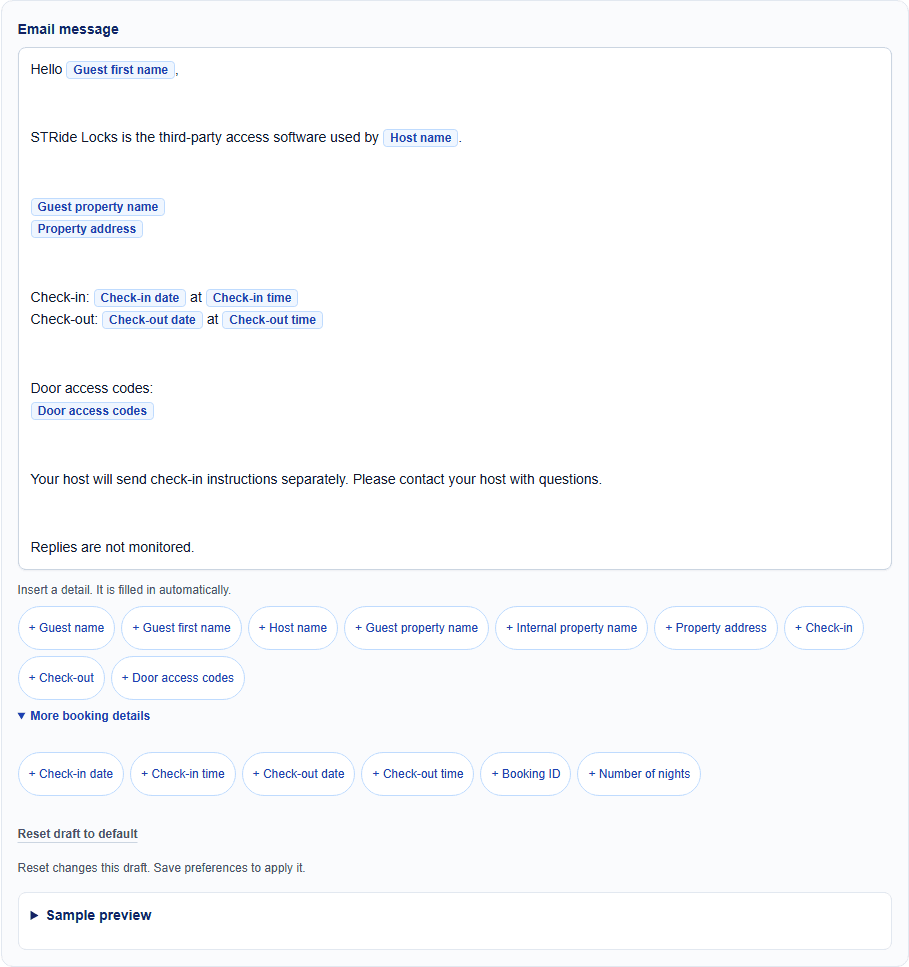
Guest email template
Example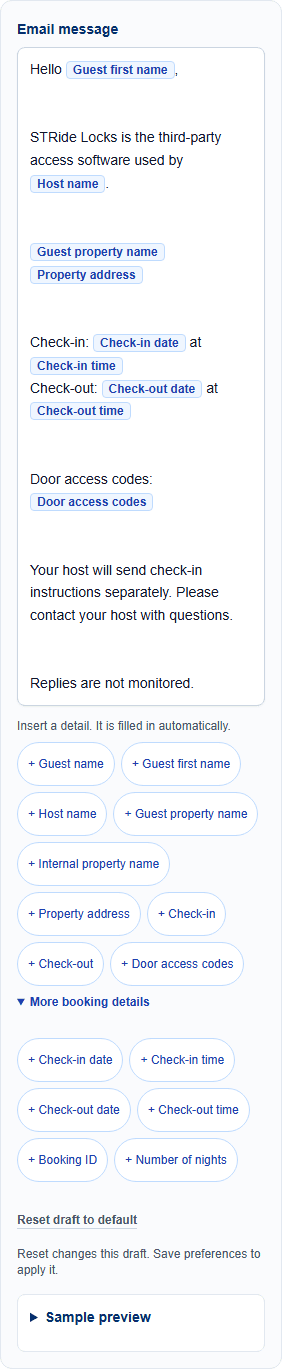
What to expect
Your messages use your wording and fill in the details for each booking.
If something does not look right
Using Host name? Enter a host name before saving. If a message is held for missing details, check the booking and listing or revise the template.
Contact support