
For
Owners and admins.
Before you start
Open Settings, then Guest Messaging. Previewing never sends a message.
Steps
Find your bookings
Under Upcoming guest messages, choose a check-in date range and select Show upcoming messages. Use Previous and Next to see every booking in that range.
Choose a preview
Select a Preview booking. Switch between Email and Text to check the message. Code not ready means the real code is still being prepared; it is not a sample code.
Edit your wording
Choose Edit templates to jump to the editor. Both the editor previews and booking messages update as you type. Save preferences when you are happy with the changes.
Check the schedule
Each booking shows its send time in the property’s time zone. Open View message to inspect its wording. Refresh bookings to see new reservations or updated details.
More details
When sending is off
These are previews only. Turning on later skips send times that have already passed. Saving template changes does not turn on sending.
Messages already attempted
The list marks bookings with a previous delivery attempt. Open Message history for its result. Editing a template never resends an attempted message.
Pending details
Missing codes, booking details or delivery history are shown clearly. Details are checked again before a message is sent. A planned time is not a delivery guarantee.
Which bookings appear?
The list covers properties connected to STRide Locks whose check-in dates fall in your chosen range. Canceled and excluded bookings are left out. Choose up to 550 days at a time, then use another range for later stays.
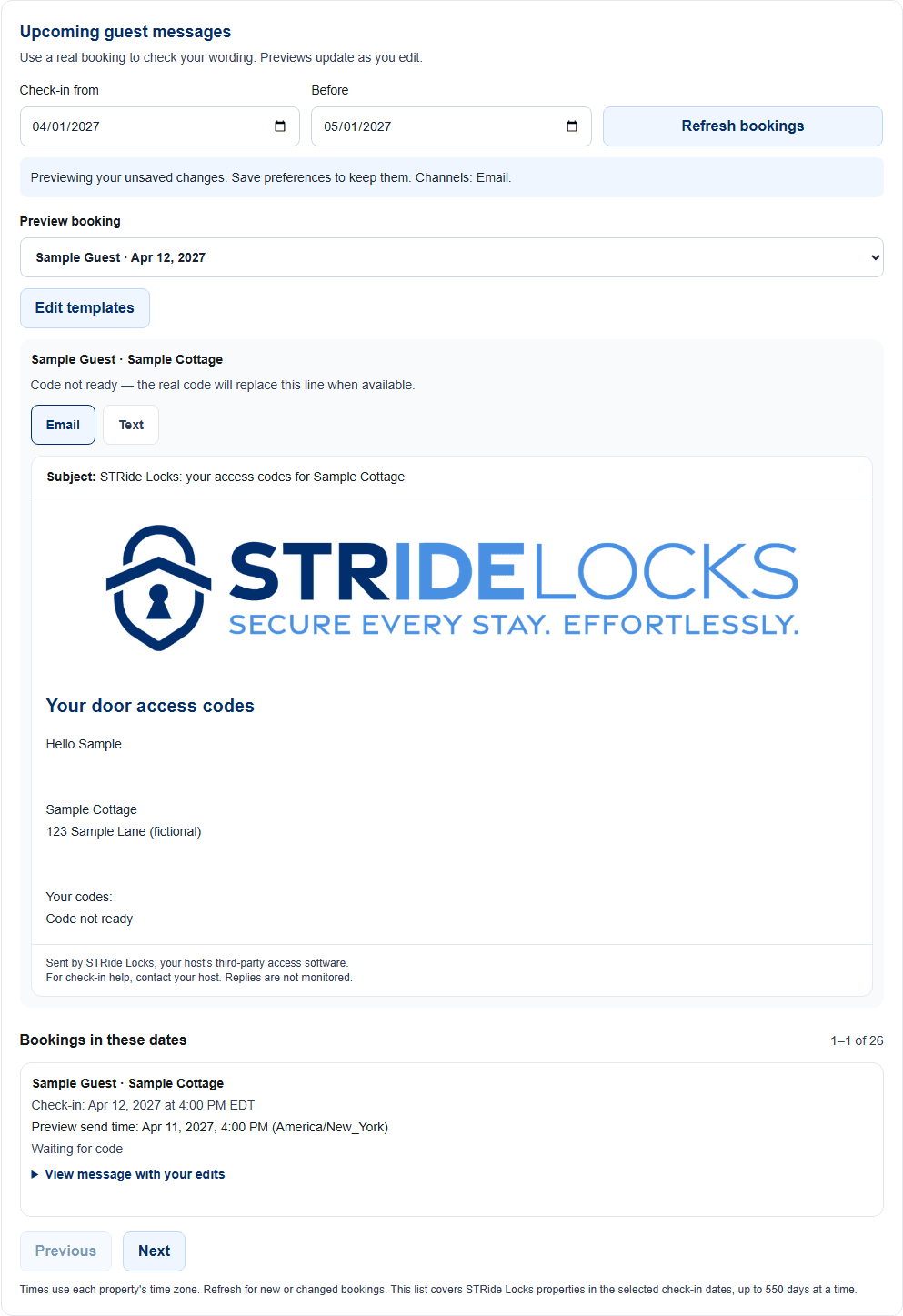
Upcoming guest messages
Example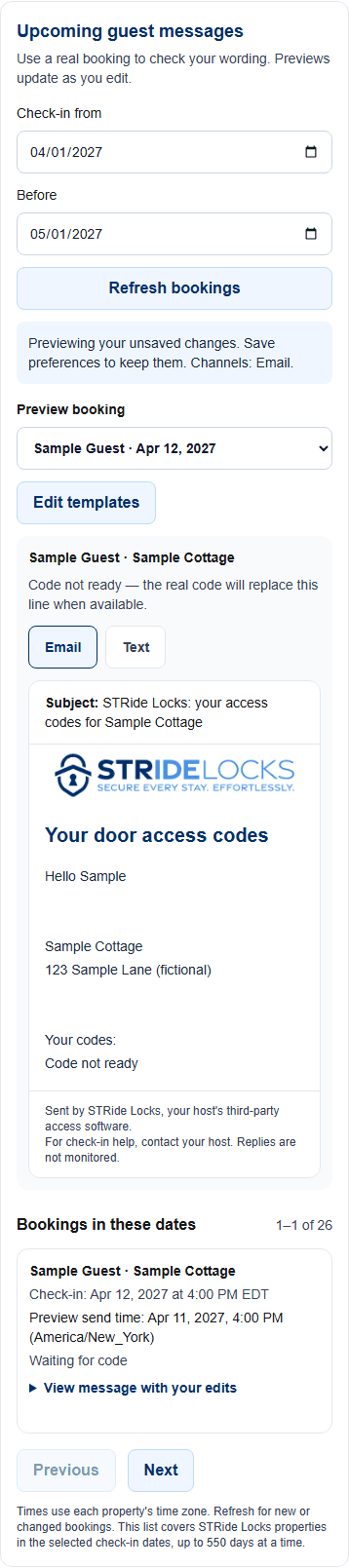
What to expect
You can review each upcoming message before keeping your template changes.
If something does not look right
Cannot load bookings? Try Refresh bookings. Missing details? Check the reservation or listing in your booking system, then refresh.
Contact support