
For
Workspace owners and admins with permission to remove codes.
Before you start
Make sure you have another working way into the door before removing a code.
Steps
Select the door
In Operations, choose the door and find the code in its access-code list.
Choose Stop and delete
This button can appear while STRide Locks is waiting for an unfinished code change. A failed change may offer Delete or Retry removal instead.
Check the code and door
The review shows the name, number and door. Make sure these are the entry you want to remove, then choose Confirm deletion. Cancel closes the review without making a change.
Watch the result
Removing means the request was sent and we are waiting for confirmation. STRide Locks checks automatically. You can leave or refresh the page; checking resumes when you return.
Example screen
Example
Phone review
Example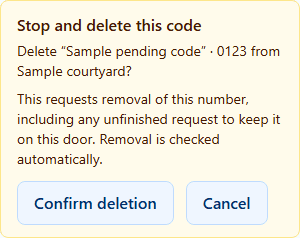
What to expect
This requests removal of that exact code, including its unfinished request to stay on this door. Other entries are kept. It does not promise that a lock can stop an action instantly.
If something does not look right
A delayed status check does not send removal again. If removal fails, the list explains it and offers a fresh review when supported. STRide Locks checks removal remotely. If someone reports that a removed number still works, contact support and arrange local help if needed.
Contact support