
For
Anyone using an authenticated workspace.
Before you start
Your visible locks and actions depend on your current organization, membership and grants.
Steps
Choose a main screen once
Operations, Portfolio, Reports and Settings highlight your selection immediately. The previous screen clears and a Loading message appears while the latest screen is prepared. You can choose another available screen while waiting. If you have unsaved changes, the leave-page confirmation still appears first; cancelling keeps your draft and current screen.
Wait for the automatic check
Temporary connection failures retain the last successful view and draft. A denied read clears code details and drafts while a fresh request checks current workspace access. A successful check restores the authorized code list, without restoring or resending a draft.
Try again if access remains unavailable
Check your sign-in and selected organization, then choose Try again. Navigation also verifies current access when you return to the app. A failed read does not prove that anyone changed your permissions.
Ask for access if needed
If a lock or action is still missing, ask your workspace owner or admin to review your membership and grants. Switching organization does not grant access to a different workspace’s locks.
Keep submitted changes separate
Reloading or losing viewing access does not cancel a previously submitted lock change. Retained requests may still finish; this check does not resend them or release a retry restriction. Ask an authorized owner or admin to review an uncertain operation.
Example screen
Example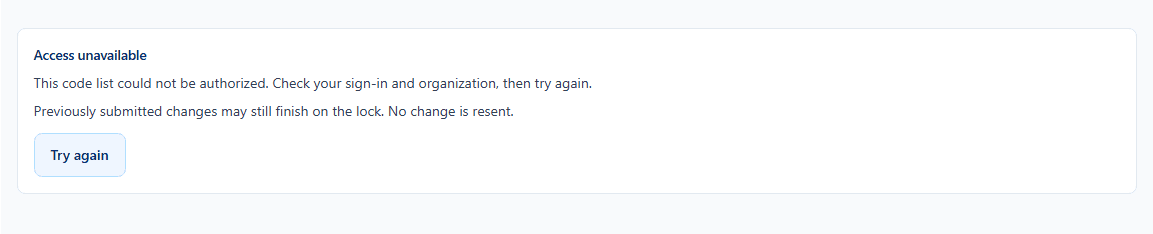
Additional example screen
Example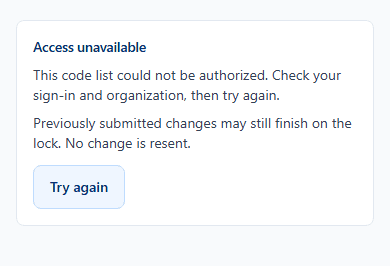
What to expect
The refreshed page reflects your current session, organization and allowed actions.
If something does not look right
For a temporary service failure, wait and try the read again. For missing access, contact your workspace owner or admin. Do not resend a lock change just because its confirmation is unavailable.
Contact support