
For
Anyone with access to view codes.
Before you start
In Operations, select the door and open its access code list.
Steps
Open Other code records
This section shows saved names and numbers that the lock service reports as not installed. Keeping them here does not change the lock.
Check before restoring
If the code works at the door, leave it alone. If it does not work, check the same door in the lock maker’s app.
Restore a regular code when offered
Choose Restore code beside the code you need. Select Regular access code, check the name, number and door, then confirm once. This restores the existing code and leaves other codes alone.
For an August/Yale owner’s code
Choose Personal owner code in August/Yale, or Not sure. Follow the help shown. If the app says Active but the keypad rejects it, contact STRide Locks support.
Example screen
Example
Additional example screen
Example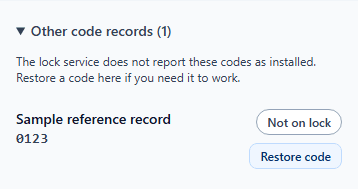
What to expect
The code returns to the main list when the lock service confirms it was added. Its status updates automatically.
If something does not look right
A number can still be reserved even when the code does not work. Adding another copy will not fix that. Contact support if Restore code is unavailable or fails.
Contact support