
For
Workspace owners and admins.
Before you start
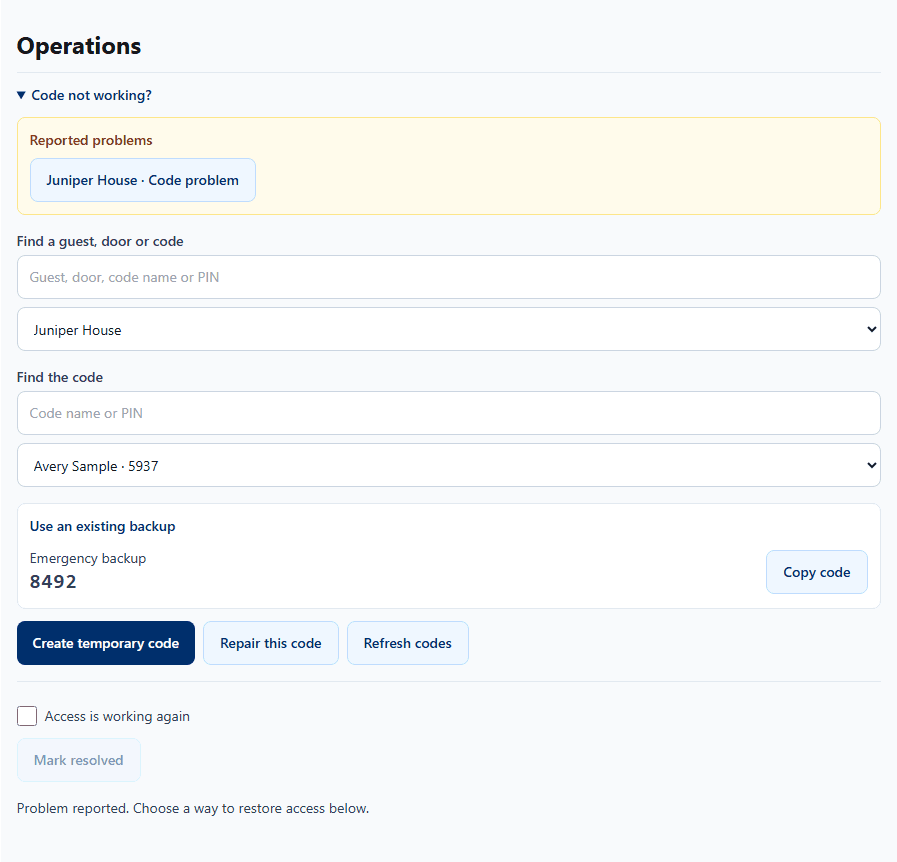
Open Code not working? inside Access readiness on Operations.
Steps
Identify the problem
Find the guest or door, select the affected code if known, and choose Report this access problem.
Use an existing backup
Available installed codes named Backup or Emergency appear here with a Copy code button. Share one privately with the guest. Codes already reported as failing are excluded.
Create a temporary code
If no backup is available and the door is online, choose Create temporary code. Generate a PIN, check the expiry, then Review and Add code. Keep this panel open for the installation result.
Close the problem
When access is working again, select the checkbox and choose Mark resolved. Otherwise the report stays visible even when service checks are clear.
Additional example screen
Example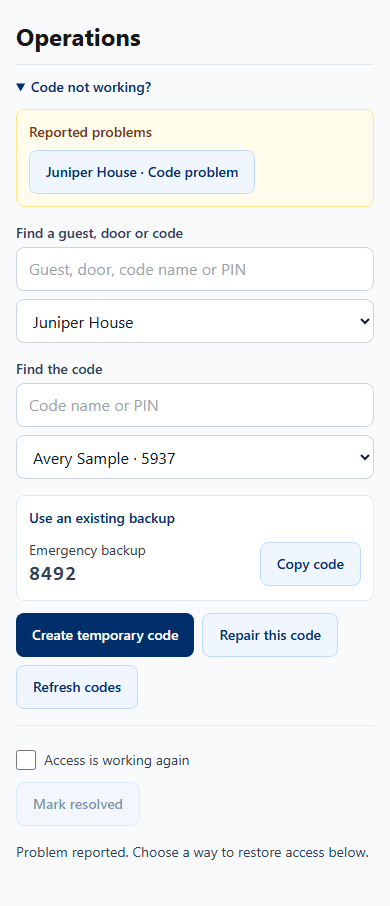
What to expect
A temporary code is a separate fallback with an expiry. Booking changes do not update its times automatically.
If something does not look right
For an offline door, use an installed backup, a physical key or local assistance. To prepare ahead, create a code named Backup or Emergency through Door codes while online. Remove or replace a shared permanent backup after use.
Contact support