
For
Owners, admins and members with lock visibility.
Before you start
Open Operations. Search uses the locks already visible to your account.
Steps
Type in Find a lock
Enter part of a lock, property or group name. Matching results appear immediately. On phones, you do not need to expand Show full lock list first.
Review the selected context and results
The match count applies only to Search results. A selected lock that does not match appears separately and keeps its access codes open. Typing alone does not select another lock or change a code.
Choose a result
Select the lock name, or focus its link and press Enter. Operations opens that lock’s access codes and clears the search. On a phone, the full list returns to the compact selected view. Searching and selecting never send a Lock or Unlock command.
Clear or change the search
No matching locks means none of your visible locks match. Try another name or choose Clear search. On phones, Show full lock list lets you browse the full visible list when no search is active.
Desktop search results
Example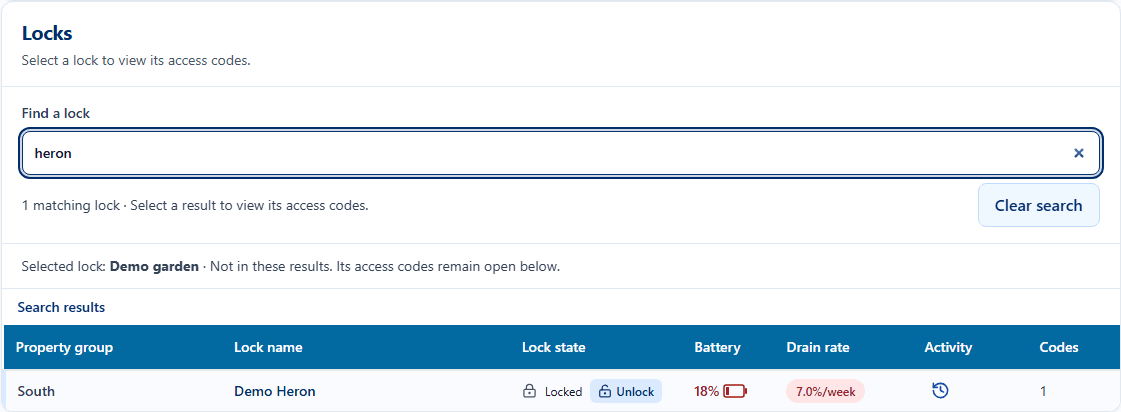
Phone search results
Example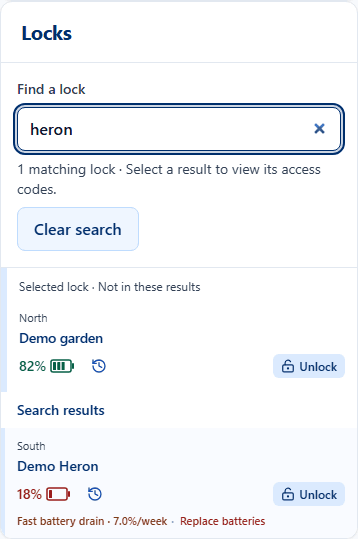
What to expect
Search results stay visible while searching, and switching happens only when you select a result.
If something does not look right
If a lock is still missing after clearing the search, check Portfolio or ask an owner or admin to review its saved connection and your lock access.
Contact support