
For
Anyone with access-code viewing permission.
Before you start
Open Operations and select the door.
Steps
Check the filter message
Showing matches for a name means the list is filtered. No codes match these filters does not mean the door has no codes.
Show the whole door list
Choose Show all door codes to clear the filters for this door. Alerts now open the full door list; selecting another lock clears a guest-name search.
Check a delayed inventory
If the current inventory is unavailable, let the automatic check finish or choose Refresh codes. Verify urgent access in the lock’s app. An unavailable check is not an empty inventory.
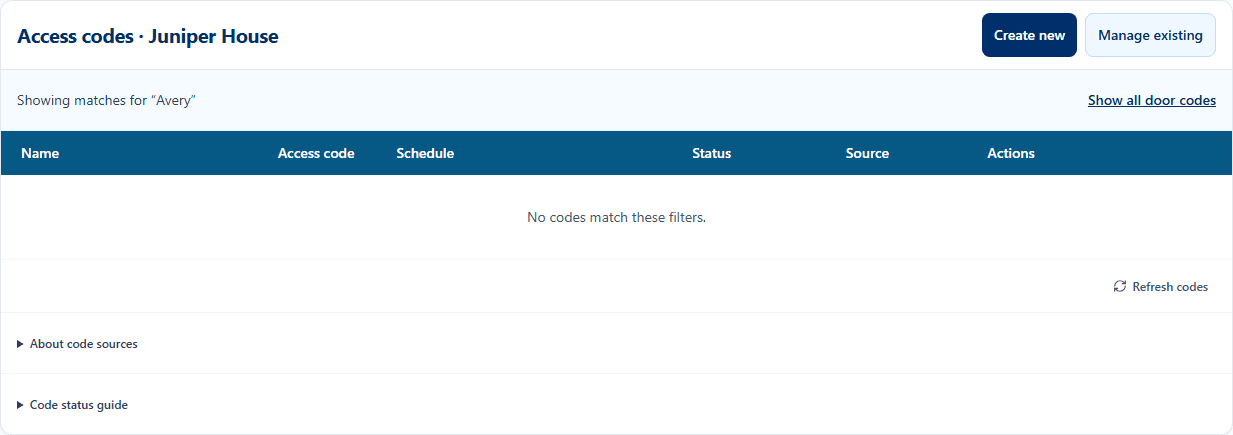
Additional example screen
Example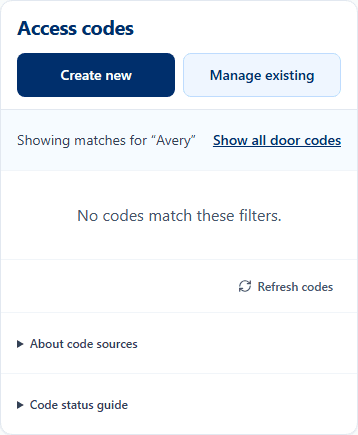
What to expect
The list shows all current records reported for the selected door, including staff and guest codes.
If something does not look right
If the unfiltered list is still incomplete, check the manufacturer’s app and contact support with the door name. Do not recreate every code.
Contact support