
For
People with access to create codes on the selected doors.
Before you start
Review the code and selected doors, then choose Add code.
Steps
Watch each door
The add-code screen stays open for multiple doors. Waiting means that door has not been submitted yet. Confirming means the request is saved and the lock service is still checking. Confirmed means installation is confirmed.
Leave whenever you need to
Back to Operations lets you continue working while the reviewed request continues. Reopen Add an access code to resume pending progress. If you close the browser before all doors are submitted, return to resume the saved request.
Read a delayed or failed result
A slow status check keeps checking automatically. A specific failure needs review; do not start the same request again while its result is unknown.
Example screen
Example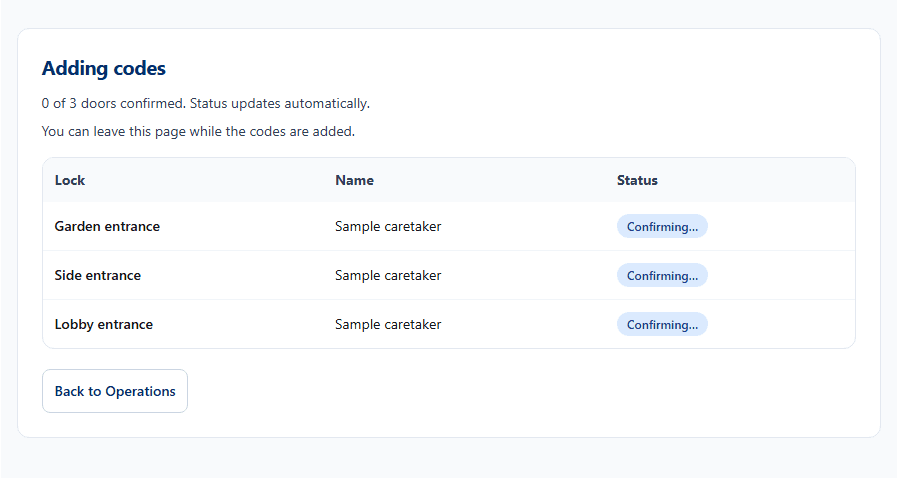
Additional example screen
Example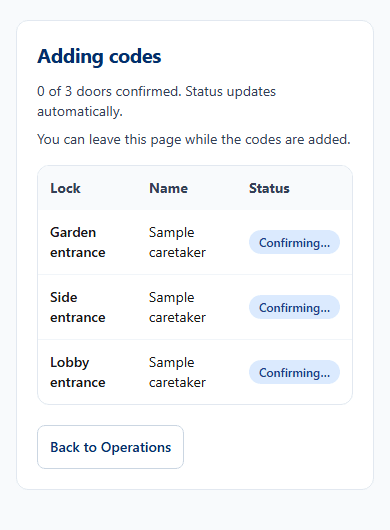
What to expect
The confirmed-door count and per-door results update automatically.
If something does not look right
If access is lost, sign in again and return to the saved request.
Contact support