
For
Owners and administrators.
Before you start
Arrange guest access and review existing codes in the lock maker’s app. Codes will remain on the lock after disconnecting, and STRide Locks will no longer maintain their schedules or remove them.
Steps
Find the lock
Open Portfolio, then Set up properties. Choose Edit for the lock (Set up or Resume for unfinished setup), then Disconnect lock beside Rename lock.
Review the effects
Choose Review. Check the named lock and any connected properties. This stops code updates, scheduled removal, monitoring and remote controls for this door. The lock remains in the lock maker’s account; your other locks stay connected.
Confirm disconnect
Confirm that you will manage remaining codes in the lock maker’s app, then choose Confirm disconnect. Cancel makes no changes.
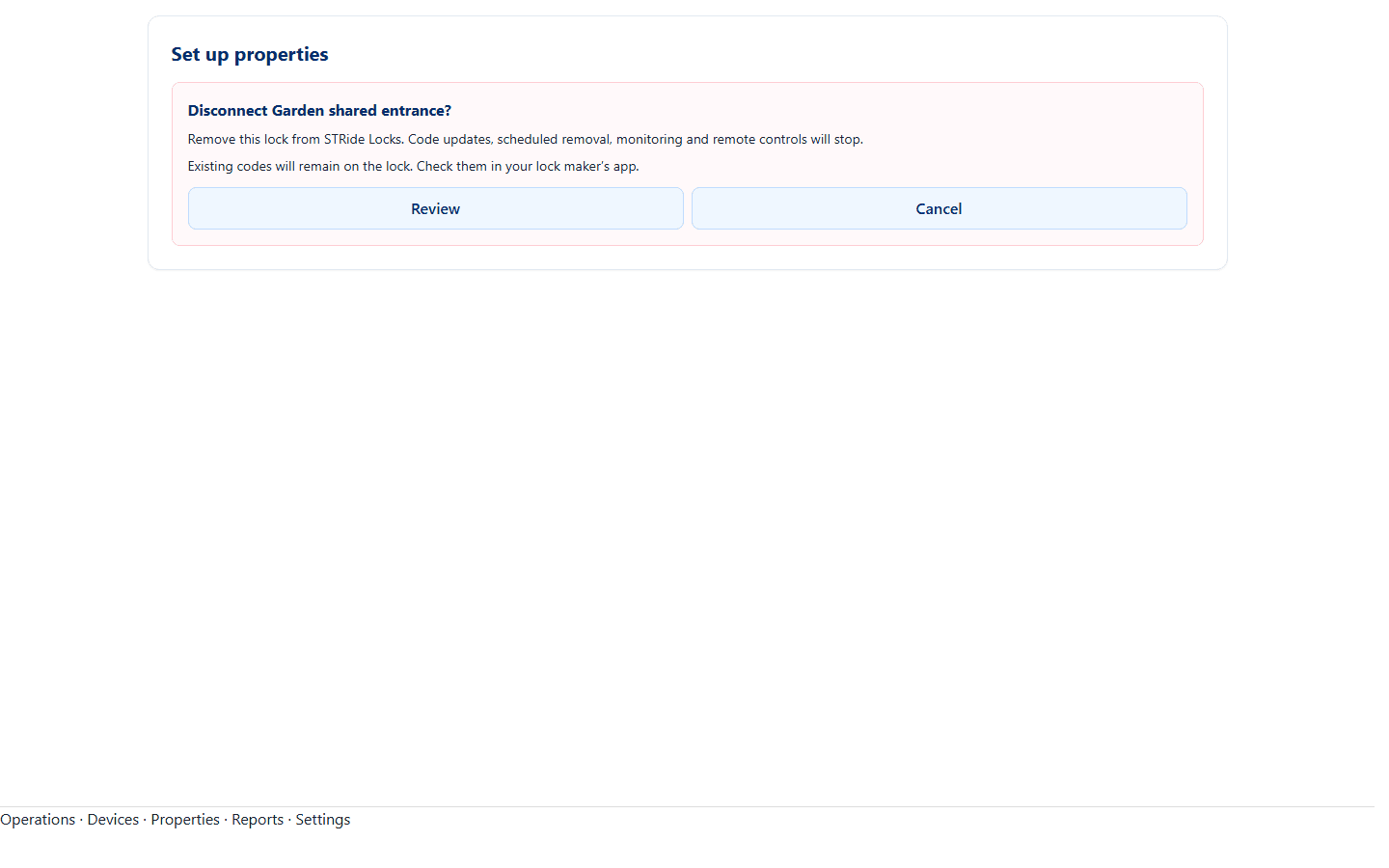
Additional example screen
Example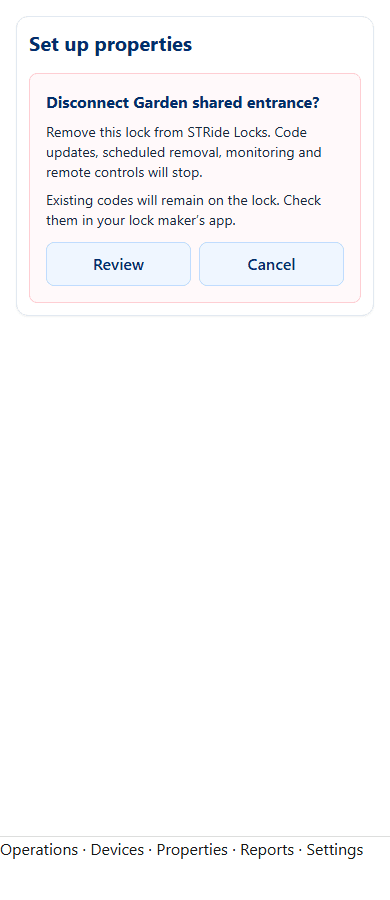
What to expect
After disconnection is confirmed, it disappears from your saved STRide Locks inventory. Existing history is retained. To reconnect later, contact support to restore the lock connection, then add it from Portfolio and review setup and code schedules.
If something does not look right
If the result is unclear, choose Check disconnect status. Reloaded pending requests appear under Set up properties with Check disconnect. Checking never resends the request. If the lock service still reports the device connected, use Review disconnect again for a fresh confirmation.
Contact support