
For
Workspace owners and administrators.
Before you start
The former Simulation Mode settings control has been replaced by Booking automation status. Your saved safeguards have not been turned off or changed.
Steps
Review the current status
Open Settings → Booking automation. Automatic booking updates are off means background lock writes are disabled. A saved preview setting alone does not confirm whether any property has completed a live handoff.
Preview booking access
Choose Open Booking preview in Guided setup. Select a lock and review its saved forecasts. Reading the preview never starts automation, writes codes or sends messages. It remains available after setup.
Prepare a property handoff
Use Switch plan to review reservations, existing codes and shared doors. Live management requires a verified handoff for that property. Do not disconnect the previous manager or change a global preference to try to start management.
Keep manual work and messages separate
A confirmed manual lock, code or recovery action can change a real lock even while booking previews are enabled. Guest sending also requires its own explicit review and activation.
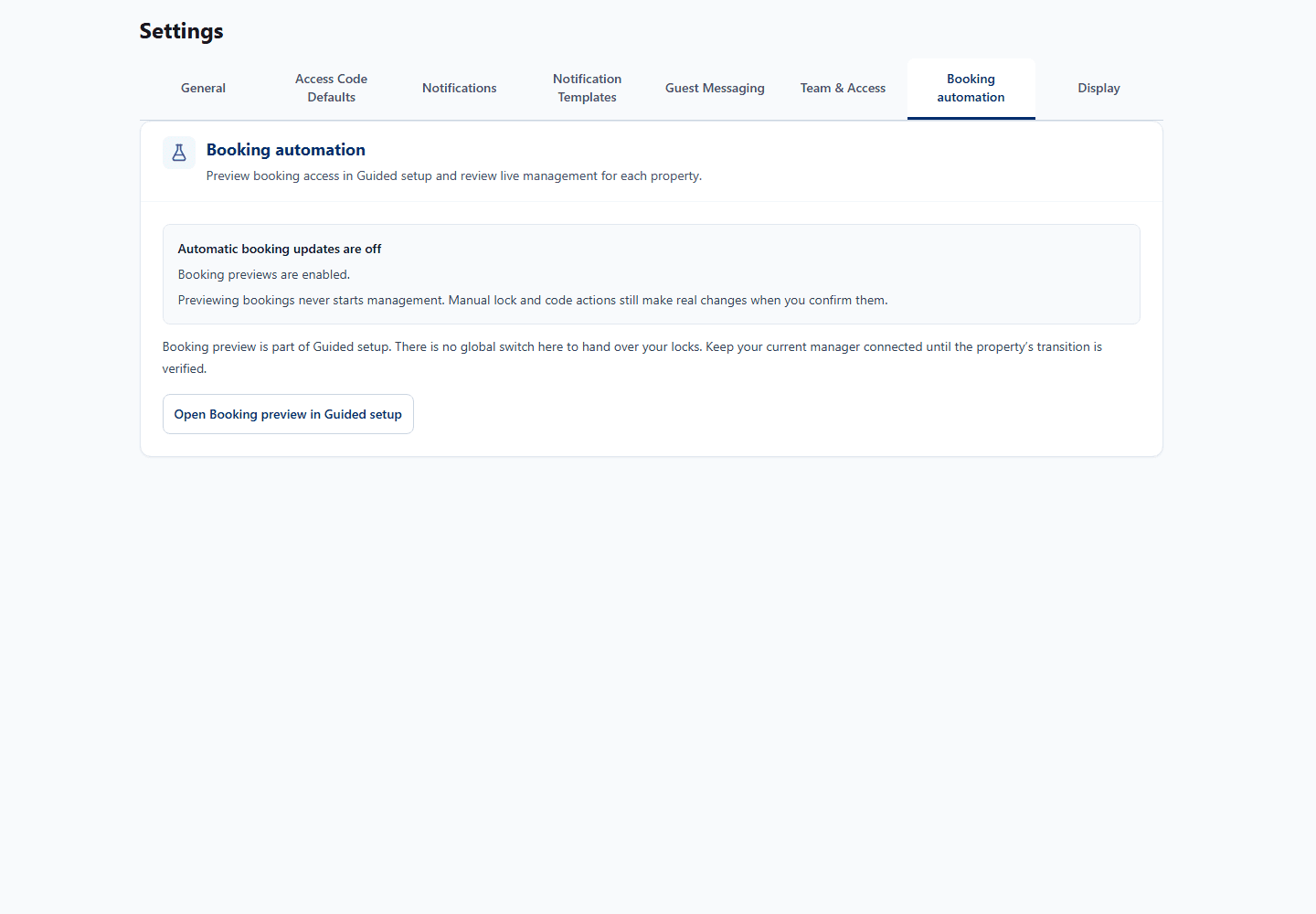
Additional example screen
Example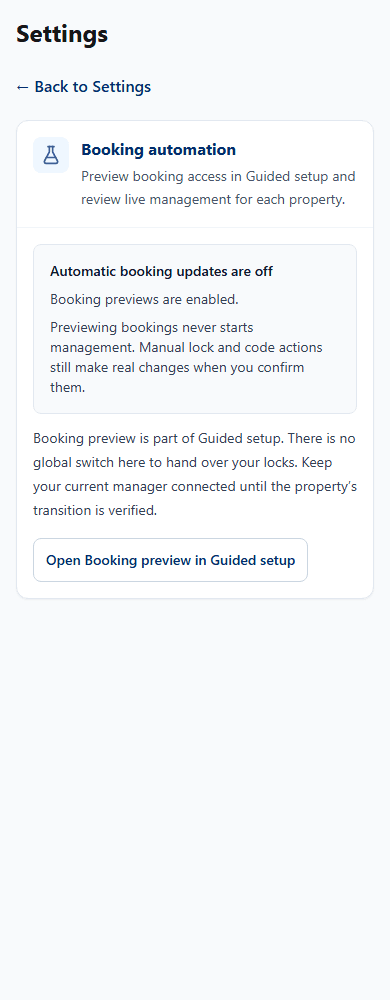
What to expect
Preview and live management have separate purposes, with no global toggle that suggests setup alone transfers control.
If something does not look right
If status is unavailable, reload Settings or refresh the Booking preview step. Do not infer that automation is on or off from a failed read.
Contact support