
For
Workspace owners and administrators.
Before you start
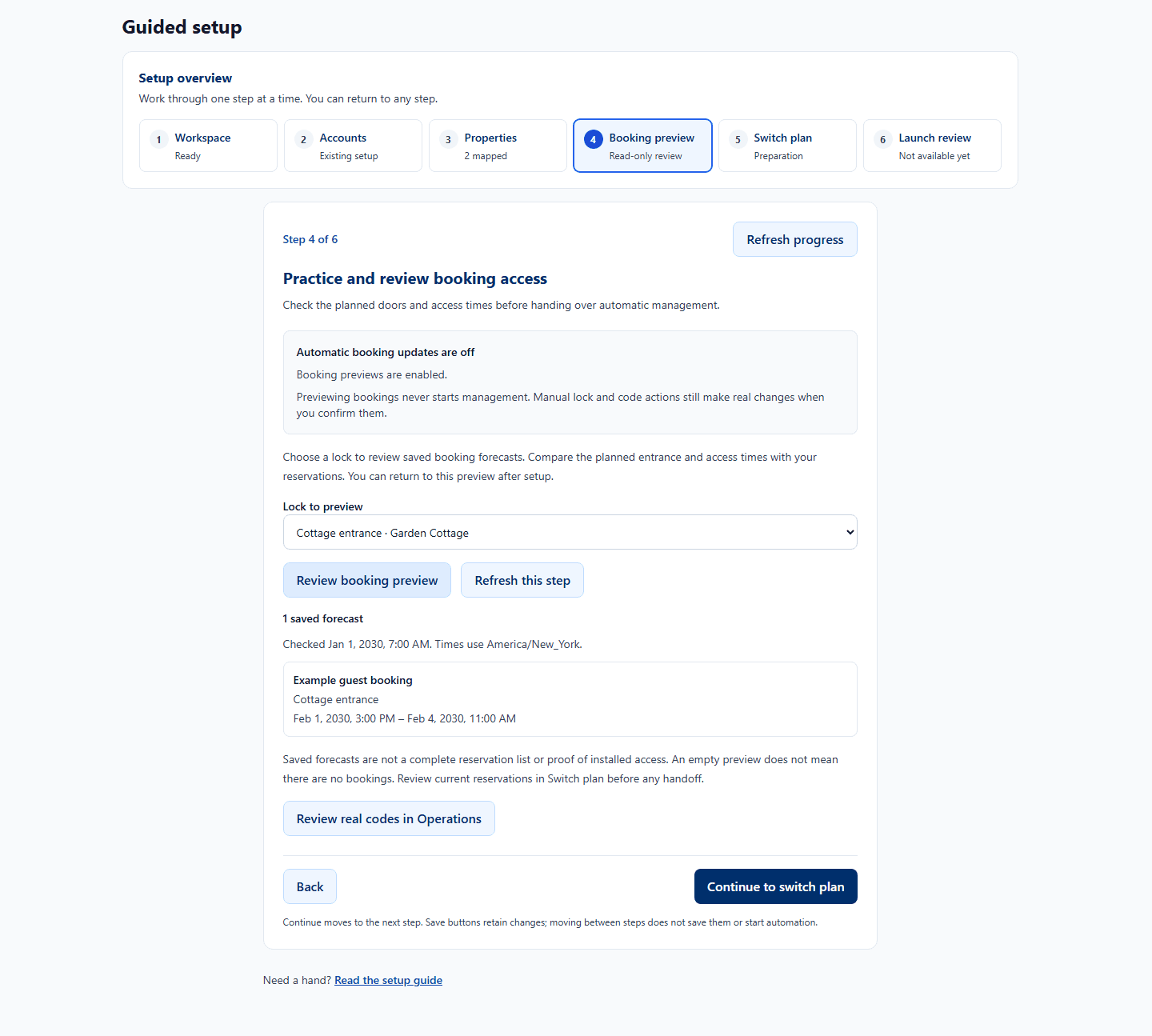
Booking preview is a read-only step in Guided setup. It replaces the standalone Simulation Mode control; underlying preview safeguards remain in place. Forecasts appear when saved planning records are available for the selected lock.
Steps
Open Booking preview
In Guided setup, choose step 4, Booking preview. Select a lock, then choose Review booking preview. You can also open Booking preview below the code list in Operations. Large previews show the first 50 entries.
Review the access windows
Check the entrance, dates and displayed time zone. This read does not change codes, messages, automation settings or the previous lock manager. Forecasts contain no lock PINs and have no edit or delete actions. Settings → Booking automation links back to this step.
Review existing access before switching
A forecast does not establish that an existing guest code can be replaced. Preserve assigned codes, including codes already sent but not yet installed. Use step 5, Switch plan, in Guided setup to review a transition where checks are available. Booking preview does not activate management or guest messaging.
Additional example screen
Example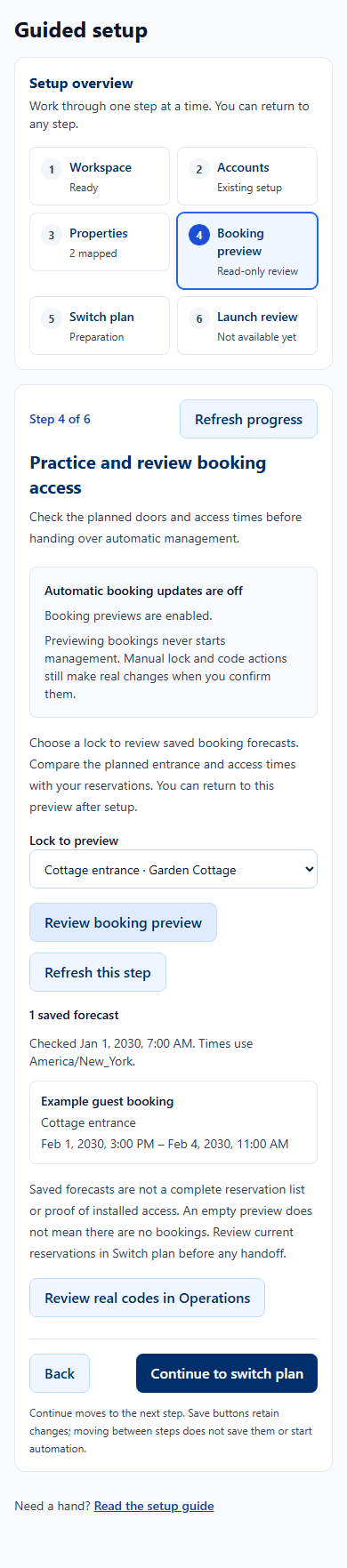
What to expect
You can distinguish expected booking access from actual lock credentials.
If something does not look right
If the preview is unavailable, refresh this step and try again. No forecasts does not establish that the booking account is empty. Forecasts may be incomplete; use Switch plan to review current reservation commitments before a handoff.
Contact support